Quick Kibo Get Quick Kibo

Custom keyboard for iPhone

Make your iPhone keyboard feel like yours

Quick Kibo brings custom themes, mechanical key sounds, reactive RGB lighting and designed keycaps to the keyboard you use every day. Your choices follow you into Messages, Notes, Mail and other apps.

Download on the App Store

iPhone · iOS 17 or later · free to download

See Quick Kibo in action

A look at the real keyboard: personal themes, expressive sounds, multilingual typing and privacy controls.

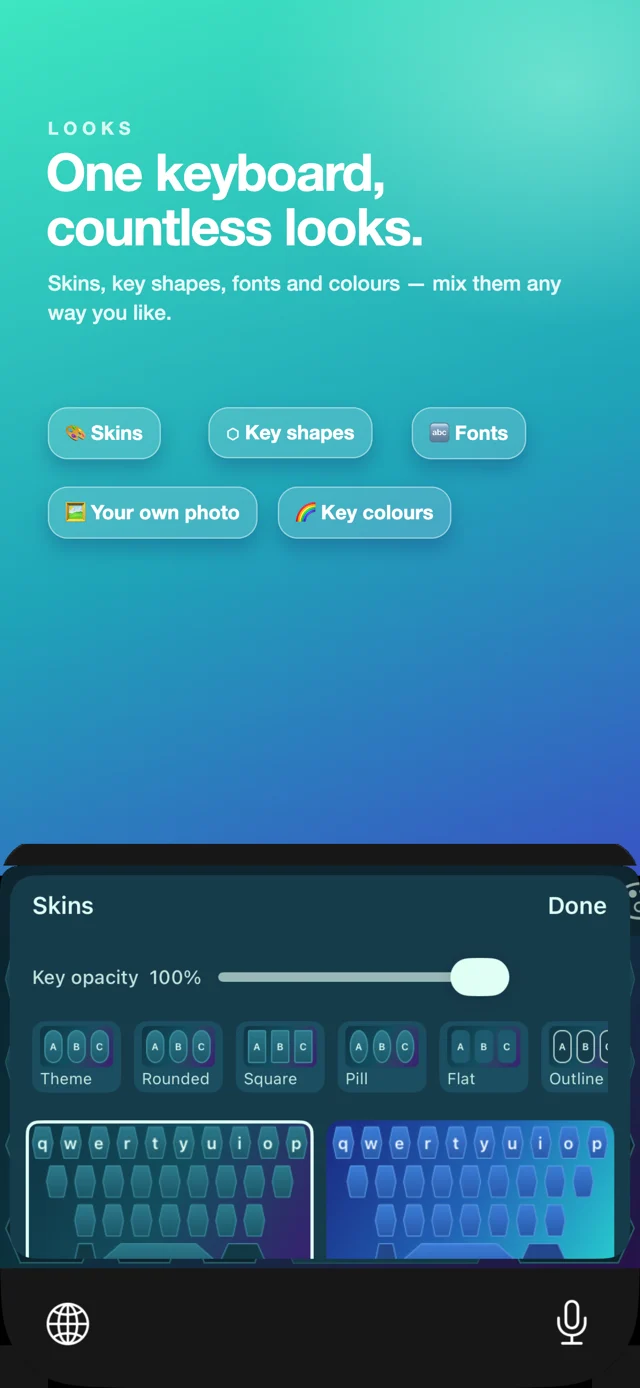
Quick Kibo App Store screenshot showing keyboard themes, key shapes, fonts and colors.
Themes and key shapes
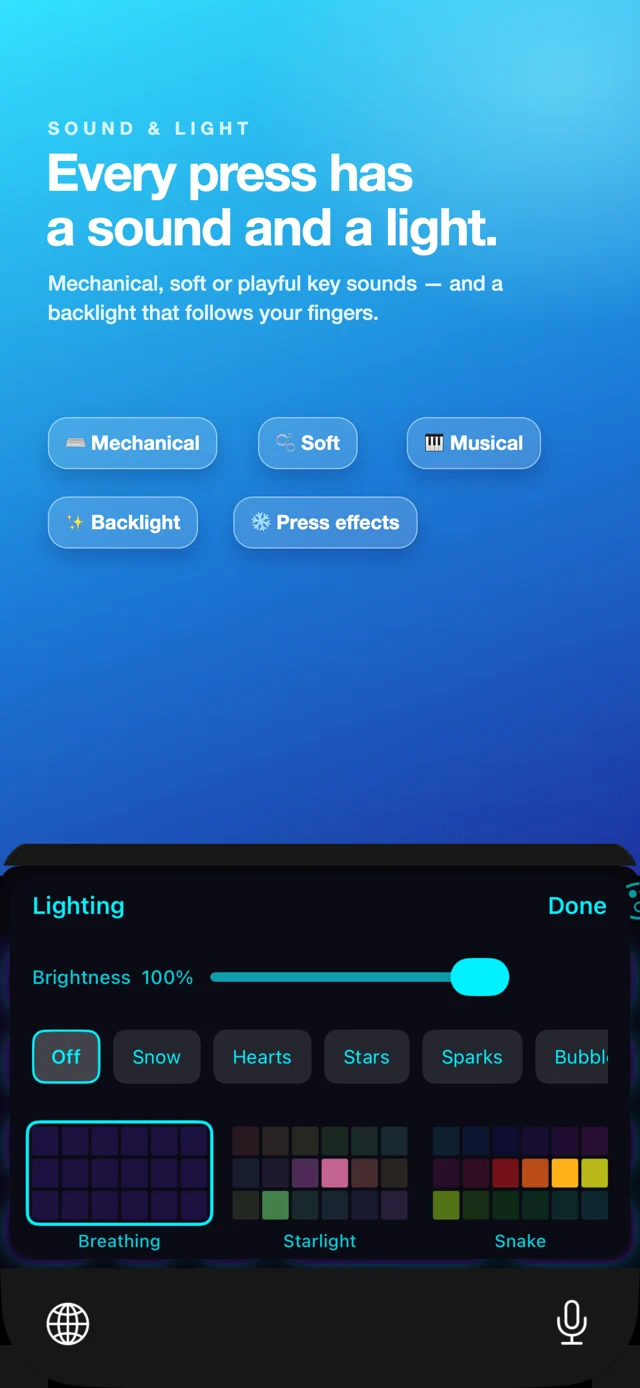
Quick Kibo App Store screenshot showing mechanical key sounds and RGB lighting controls.
Key sounds and RGB lighting
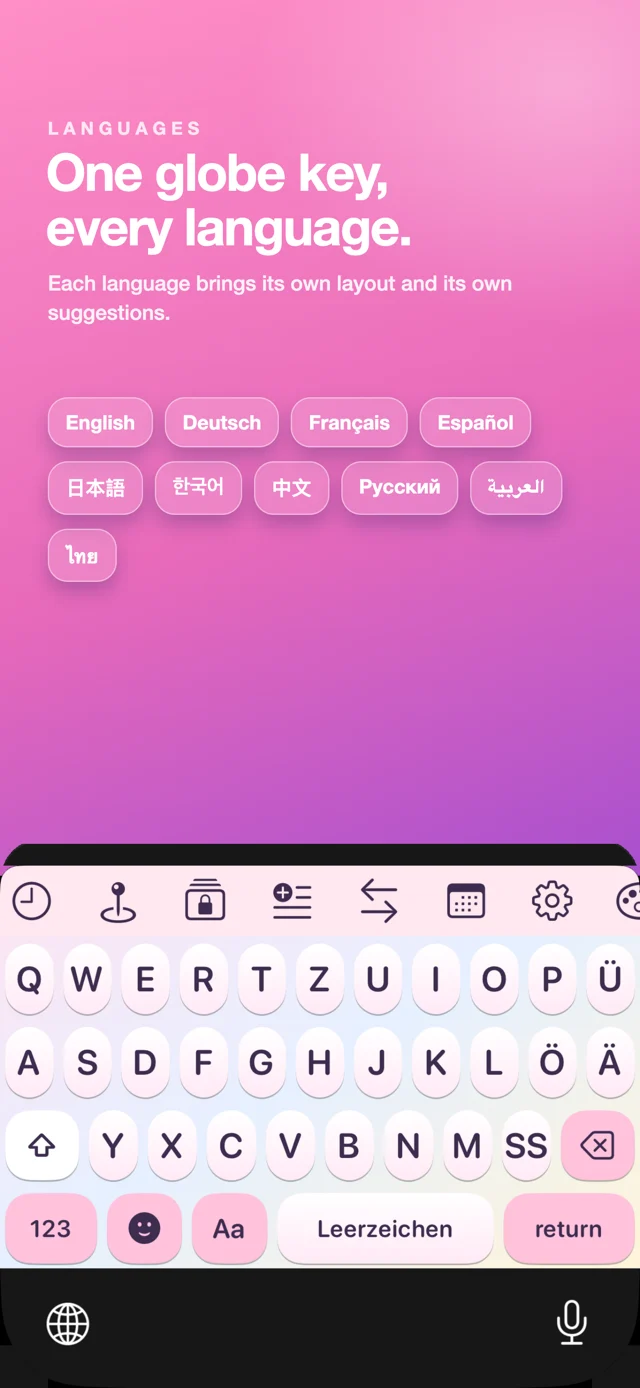
Quick Kibo App Store screenshot showing language layouts on its custom iPhone keyboard.
Typing across languages
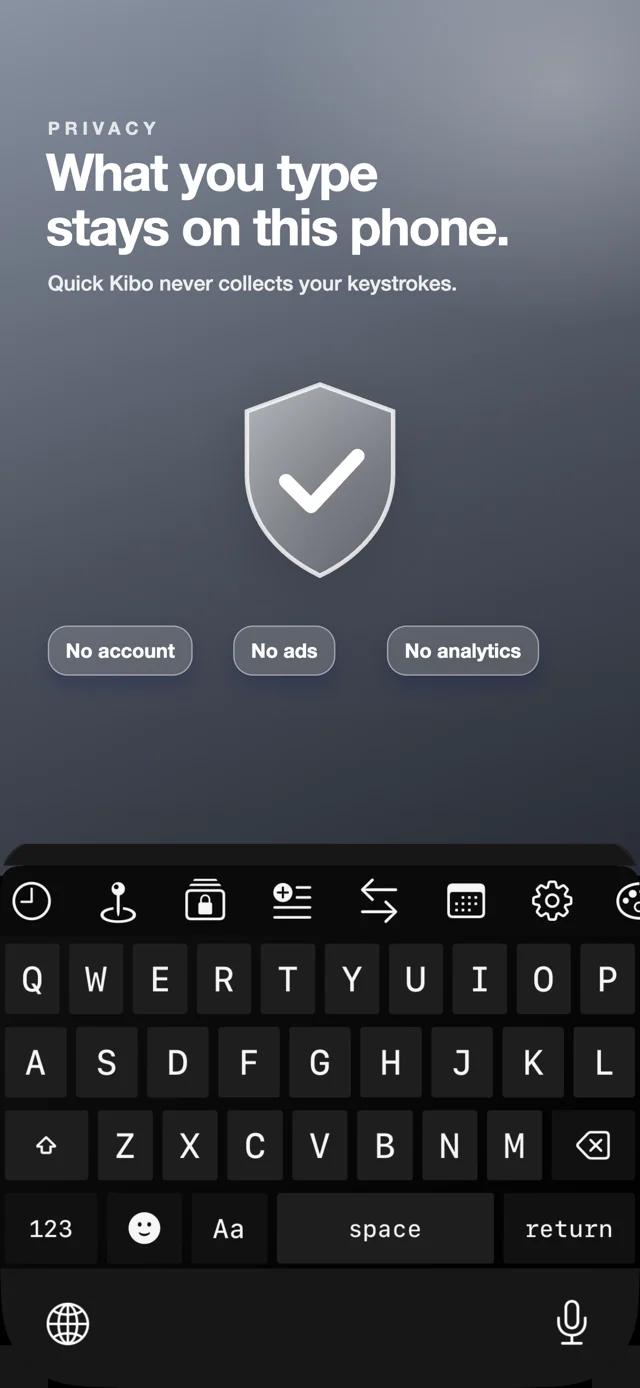
Quick Kibo App Store screenshot showing the keyboard privacy message and typing interface.
Privacy built into the keyboard

What you actually get

Key sounds that were switches first

Each one synthesised rather than sampled from a stock library: Clicky is a blue switch — sharp, loud, a little obnoxious in a quiet room. Linear (red) is smooth and quiet. Tactile (brown) has the bump. Thock is the deep cushioned sound of a modded board. Piano gives every key a note on a pentatonic scale, so a sentence comes out as a melody. A few of them: Clicky · Linear · Tactile · Thock · Typewriter · Piano · Water Drop · Retro 8-bit · Bell ….

Themes in seven kinds of mood

Minimal, Dark, Cute, Neon, Gradient, Colorful and drawn patterns — stars, hive, polka. Each one sets the backdrop, the key fill, the pressed state, the corner radius and the text colour, so a theme reads as a keyboard rather than a tinted screenshot. Pick one and it appears in every app you type in.

RGB backlight, on a phone

Effects split between the ones that answer a keypress and the ones that just run. Press a key and Reactive Glow blooms under it, Ripple pushes a ring outward, Confetti Burst throws sparks. Leave it alone and Rainbow Wave, Fire, Meteor or Aurora keep moving. Continuous effects run on one 30fps timer and stop the moment the keyboard hides. A few of them: Reactive Glow · Ripple · Confetti Burst · Rainbow Wave · Starlight · Fire · Meteor · Aurora ….

Emoji, kaomoji and skin tones

Tabbed sections including a full kaomoji panel, ¯\_(ツ)_/¯ and friends. Recents sit at the front, section headers stick while you scroll, and skin-tone variants are one long-press away. All text, no image assets — which is what keeps the keyboard inside its memory budget.

Fancy text styles

Bold, Italic, Bold Italic, Script, Double-struck, Mono, Small Caps, Wide, Circled, Squared, Upside Down and Strikethrough. Honest caveat: these are Unicode characters, not fonts, and Unicode is incomplete. Small Caps has no Q, Squared has no lowercase set. Kibo maps every letter it can and leaves the rest legible instead of drawing a tofu box — and numbers, punctuation and emoji always pass through untouched.

Typing help that keeps up

Word suggestions, autocorrect and next-word prediction help you keep moving. Language layouts include Chinese pinyin with phrase and whole-sentence conversion, Japanese kana-to-kanji conversion and Korean Hangul assembly.

Type across languages

Choose the keyboard layouts you use and switch with the globe key. Chinese pinyin offers phrase and sentence conversion, Japanese input converts kana to kanji, and Korean input assembles Hangul.

Snippets and secure entries

Save the address, the email signature, the reply you send twenty times a week, and drop it into any app from the keyboard. Card and ID numbers go in a separate Keychain-backed list that shows them masked.

Your own photo behind the keys

Pick a photo and it becomes the backdrop, with a dim slider so the keycaps stay readable. The app downsamples it once on import — the keyboard extension never touches the full-size image, because a 48MB decode would get the keyboard killed mid-sentence.

Shuffle

Three independent switches for theme, sound and lighting. A new combination is rolled when the keyboard appears, never while you are typing, and your hand-picked settings are stored separately so turning shuffle off puts you back where you were.

How to turn Kibo on

iOS hides every third-party keyboard until you add it by hand. This is the whole setup — about 20 seconds, once.

  1. Install Kibo and open itThe app walks you through this same list and has a button that jumps straight to the right settings page.
  2. Settings → General → KeyboardThat is the iOS Settings app, not Kibo.
  3. Keyboards → Add New Keyboard…Kibo appears under “Third-Party Keyboards”.
  4. Tap KiboIt joins your keyboard list. Nothing else is required — Full Access can stay off.
  5. Press the globe key in any appTap 🌐 to switch to Kibo. Hold it to pick from a list if you have several keyboards.

If Kibo does not appear in the list, make sure the app finished installing and reopen Settings — iOS caches that screen.

About Full Access

iOS shows a scary warning when you enable Full Access for any keyboard, so here is exactly what it means here.

Full Access is off by default and Kibo works without it: typing, autocorrect, every theme, every sound, every light effect, emoji, kaomoji, fancy text and every language work with the switch off.

Full Access is optional and off by default. It enables the keyboard’s clipboard Copy and Paste buttons and its location insertion key. Location is read only when you press that key.

Quick Kibo has no account or analytics. Text you type is not collected, logged or transmitted, whether Full Access is on or off.

Price

Free to download. Typing, autocorrect, emoji, kaomoji and suggestions are never gated — a keyboard that will not type is broken, not free.

Quick Kibo is free to download, with optional in-app purchases for Pro. The App Store listing shows the available purchase options for your region.

Download on the App Store

Questions people ask first

Does it work in every app?

Yes — a system keyboard is a system keyboard. Themes, sounds and lighting come with it into Messages, WhatsApp, Instagram, Safari, email and everything else. Apps that force a secure text field (passwords, payment sheets) fall back to the system keyboard; that is iOS, not Kibo.

Will I hear the key sounds through headphones or on silent?

Key sounds follow the system sound behaviour on your device, like any keyboard click. If the ringer switch is off you will not hear them.

Which devices and iOS versions are supported?

Quick Kibo supports iPhone and iPad and requires iOS 17 or later. Check the App Store listing for current compatibility details.

Does it type Chinese, Japanese or Korean?

Yes. Pinyin gives you character candidates, romaji becomes kana, and jamo assemble into Hangul syllables. The app interface itself is in English.

How do I remove it?

Settings → General → Keyboard → Keyboards → Edit → delete Kibo, then delete the app. Nothing is left on a server because nothing was ever sent to one.